Creating good graphics is vital for website owners. How do you make them? I use Canva.
What is Canva?
Canva is an online graphic design tool that allows you to make professional-looking images and graphics. You can use the tool in any browser without downloading anything. It is so easy to use that you can create your own banners and images free with no special design skills or knowledge.
Below are the blog banners (featured images) I created in the past using Canva. They look quite neat, don’t they? I assure you that I don’t have any special graphic skills or techniques. Yet, I still could create these eye-catching images and to be honest with you, I surprised myself! 
The blog banners can make a big difference in your content promotion. It’s not only that your content will look more appealing to the readers, but they also make it easier to promote your blog post in social media. Especially in visual-oriented medias such as Pinterest and Instagram, where text description is quite limited, these banners come in handy to promote your content.
How Much Is It?
Here is the best part. Canva is 100% free to use!
All you need to provide is your email address and password, and you are ready to start making professional-looking images with Canva!
The only time you may have to spend money is when you chose to use their premium (paid) resources, such as photos and graphics. Even then, they are only $1/each and very affordable.
Personally, I have not used their paid resources yet as Canva provides tons and tons of free materials!
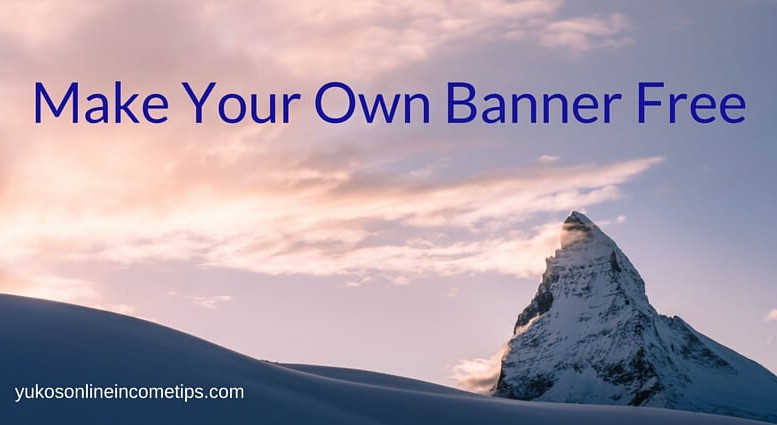
In this article, I will walk you through how I made the banner of this particular blog post “Make Your Own Banner Free” that you see in the beginning of this article. After reading this blog, I am sure you can start making your own images. 🙂 Ok, let’s begin, shall we?
How to Make Your Own Banner Free – Step by Step
1. Pick a Template (or Set Dimension)
Log into Canva. The first thing you will see is the vast selection of common templates.
You can pick a perfectly sized template depending on your purpose; Facebook ad, Twitter banner, Instagram post, or Kindle book cover, you name it. All you have to do is click on the template you want to use.
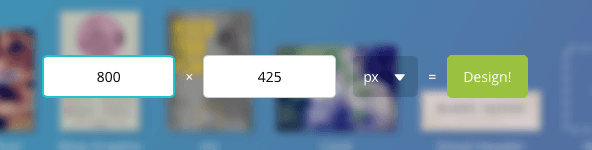
To create a featured image of your blog post, you can choose “Blog Title” (560 x 315 px) if the size fits in your website theme.
For a featured image of this blog site you are reading now, I normally set my dimension by choosing “Use custom dimensions” (upper right corner).

The size 800 x 425 seems to best fit in this website theme. But again, this depends on the theme you are using and you may want to figure out the best size for your website by trying out different templates.
Click “Design!”
2. Upload a Photo
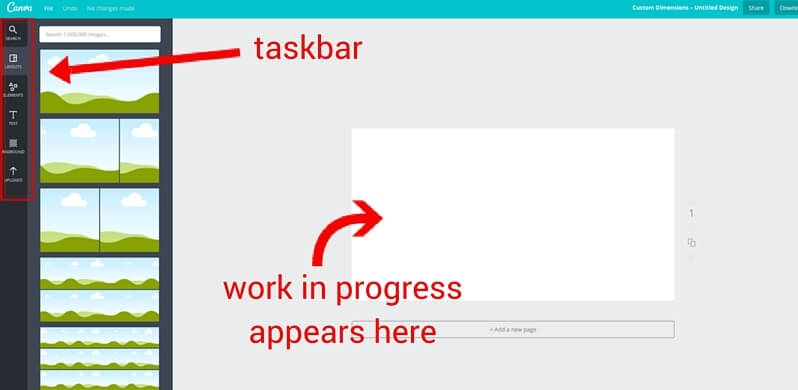
You will be taken to a page looking like below. In the center, there is a work area where you work on your image and on the left-hand side, you’ll see a taskbar.
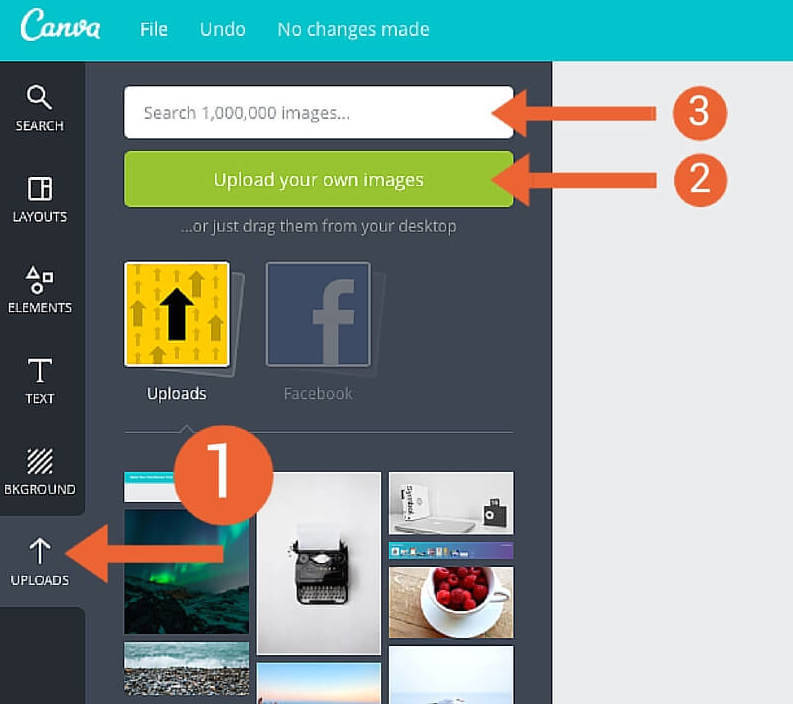
First, let’s upload a photo to use in the blog banner. Click “Uploads” (#1 in the pic below) at the very bottom of the taskbar.
Here you have two options. You can either upload your own photo from your computer (#2) or find an image from Canva’s own selections. (#3) To browse through their images (and there are tons!), simply type in a keyword in the search bar (#3), such as “snowy mountain,” and hit enter.
Beware that some images are free and some cost you $1/image. If you chose a paid image, you’ll have to make the payment later at the time of downloading the final product.
I uploaded this photo from my computer, but you can find tons of similar photos on Canva as well.
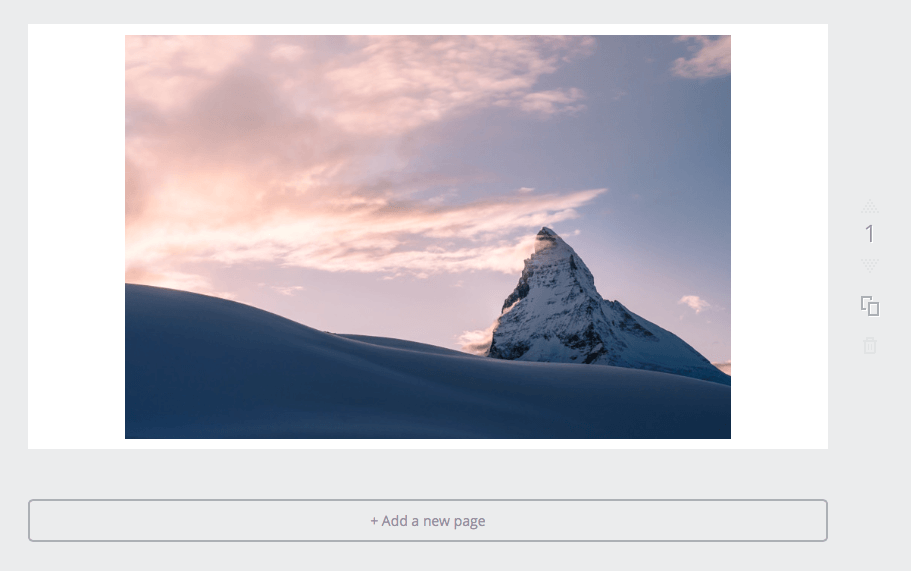
Now, do you see the white area surrounding the image above? Apparently, this photo was not big enough to fill the dimension 800 x 425.
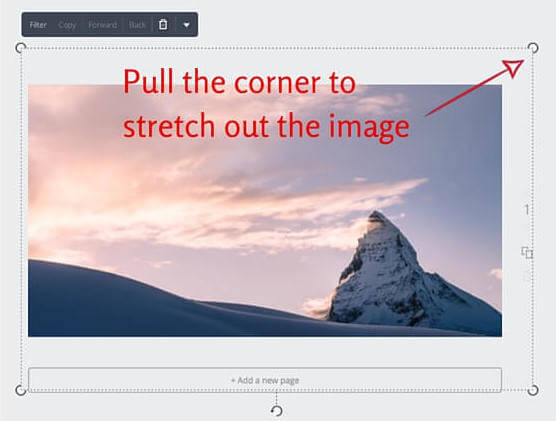
But do not worry. You can stretch out the image to fit the size, or enlarge it even bigger to highlight the part of the image you want to include in the design! For this feature, you simply need to click the image once, grab one of the four corners, and pull it outward to enlarge the image.
3. Add Text
Now we are going to add the text.
Click “Text” in the taskbar and then “Add heading.”
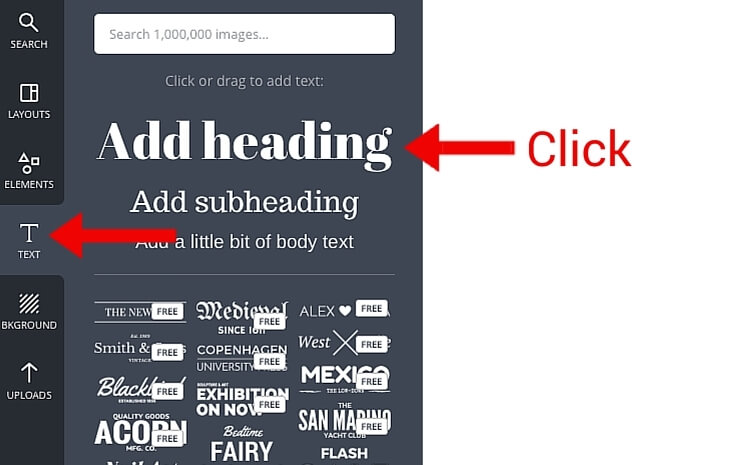
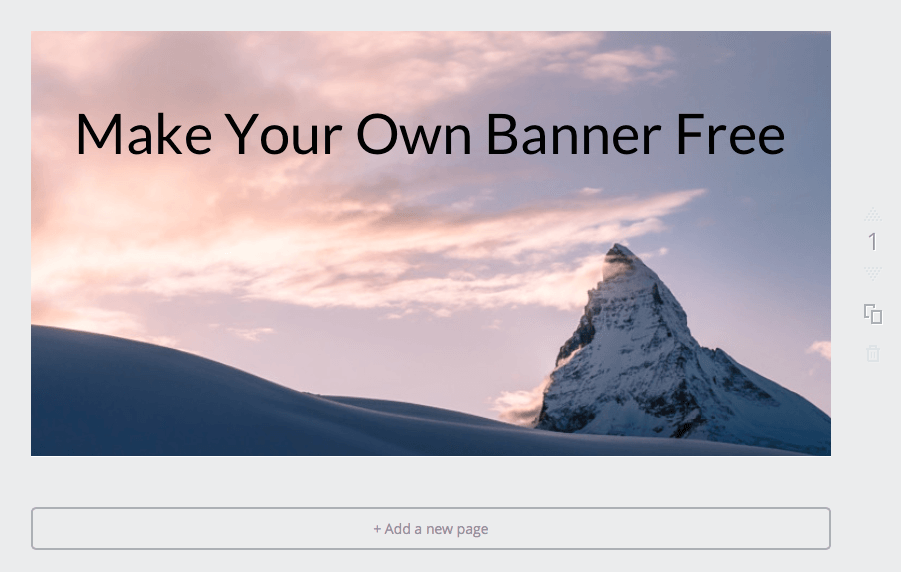
Type in the phrase you want to add to the banner. I decided to include the title of this blog “Make Your Own Banner Free.”
The default font looks like the one below. If you are happy with it, you can leave it as is. Of course, you can freely change it as you like too, in terms of the font type, font size, and font color.
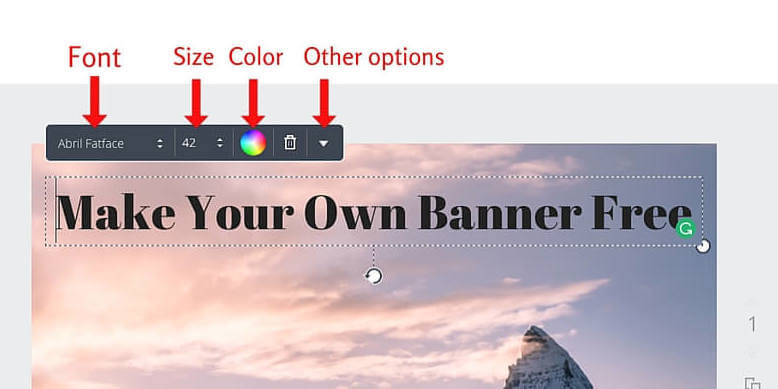
I changed the font to the one called “Lato.” What do you think compared to the original one above?
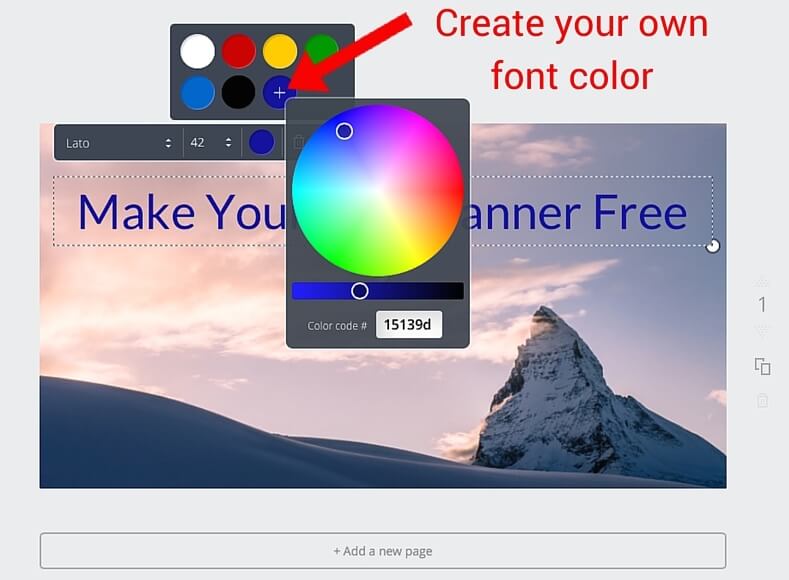
I think I like this one better than the default one. Now I want to change the color too as black text on this particular image looks a little gloomy.
Click on the color tag. Canva initially gives you the six pre-selected colors. Of course, they are not the only font colors available. If you click the plus “+” symbol, you can adjust the font color exactly as you like.
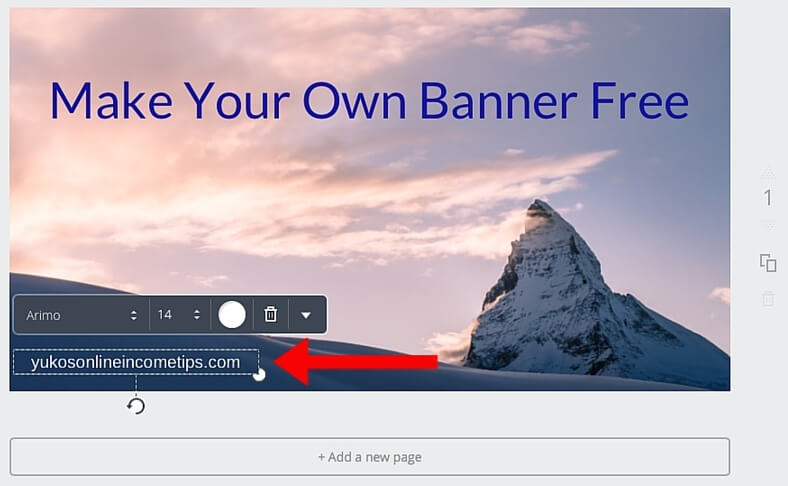
My blog banner is almost done. The last touch I want to add is to place my website domain somewhere within the image.
This is what I have started doing recently as I realized including the URL is effective to promote the website every time I share a new blog banner in social medias such as Pinterest, Instagram, and even Twitter because they are very visual-oriented. I recommend you to do the same. After all, the image belongs to your website, right?
4. Download
It’s time to download your masterpiece 🙂
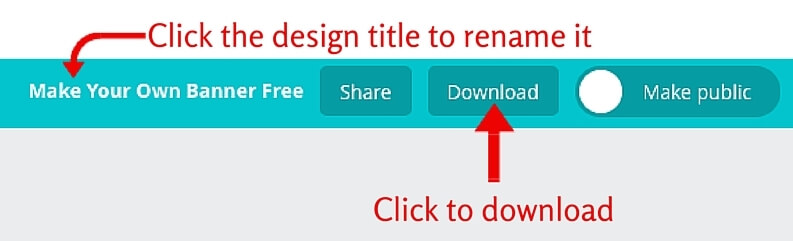
In the upper-right corner, you will see the “Download” button. Simply click it to download your work as image files (JPG or PNG) or as PDF files. I always choose JPG.
By the way, in the same area you will also see the design title that Canva picked up for the image. If you wish to change it, just click the title and you can rename it.
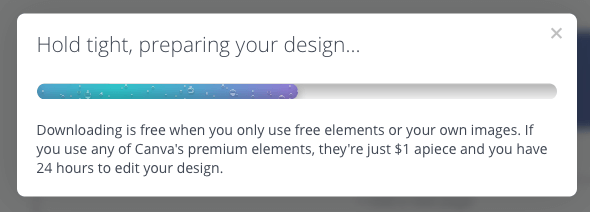
The download is going to be completed in a few seconds. As the pop-up says, here is the time you need to pay for the paid (premium) resources you used for your creation.
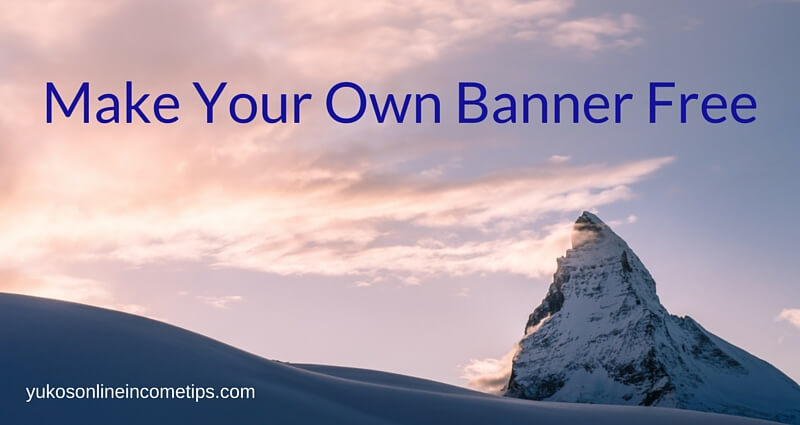
Tada! Here is the blog banner I created for this particular post! Pretty simple, wasn’t it?
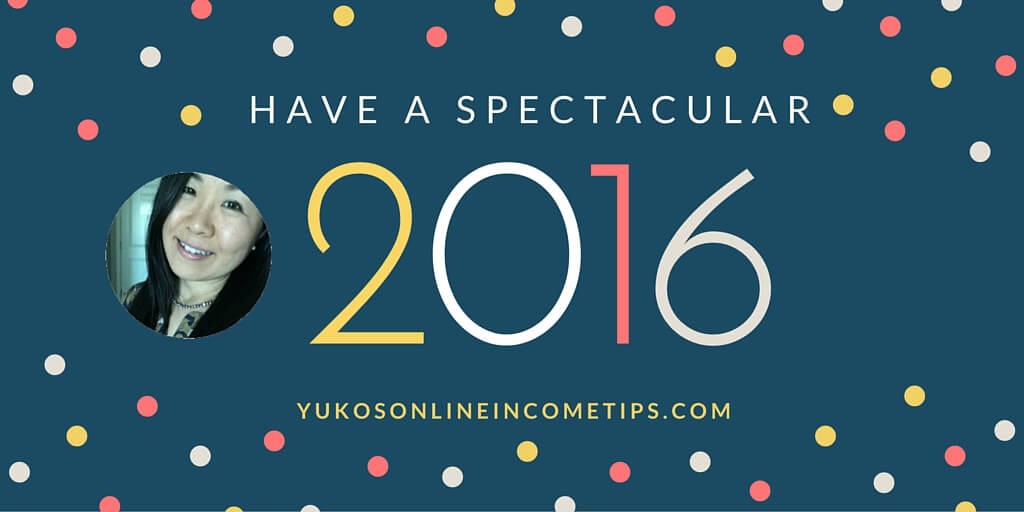
On the side note, here is other fun graphics I created using Canva specifically for the purpose of social media posts. I might be addicted to Canva? lol
- New Year greeting to my followers.
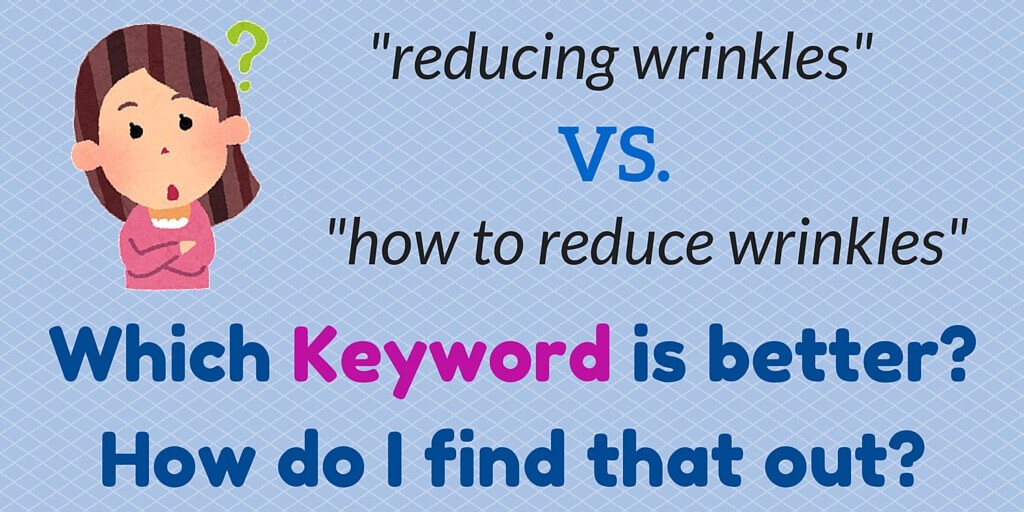
- Small banners to promote my content.
Making your own banner free is not only possible but surprisingly easy with Canva. I hope you found this tutorial post helpful and now feel comfortable enough to create your own images!
I have one favor to ask.
I want you to go back to your website, write an article with an image you created using Canva, come back here and post the link to the article below within the comment area. (free traffic for you 🙂 ) Share your masterpiece with us!
If you have any questions or comments, do leave them below too. Let your creative side emerge!
Yuko
Be the first to comment on "What is Canva? – Make Your Own Banner Free"